The terraPen web UI
The terraPen serves its own web UI, so there is nothing to install. It is useful for setup, for quick checks, and when you are away from your own computer.
Plotting is done in terraForge
For everyday work — generating G-code, uploading and running jobs — use terraForge. This page is a reference for the web UI.
Your screen may look different
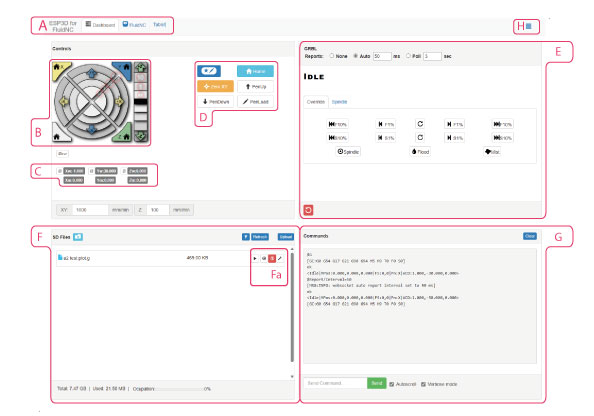
The web UI reflows to fit the window, so panels move around on smaller screens. Find panels by their names rather than their position.
The panels
A — Tabs

Switch between the main dashboard and the firmware configuration settings.
B — Jog wheel
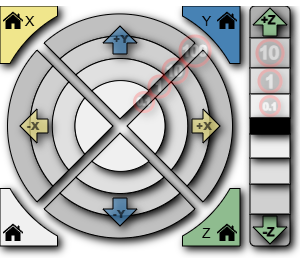
Moves the pen carriage in X, Y and Z. Each ring of the wheel is a different step size: the outer segments move 100 mm, and the rings inside move 10 mm, 1 mm and 0.1 mm.
See Moving the pen carriage for detail.
C — Position readout
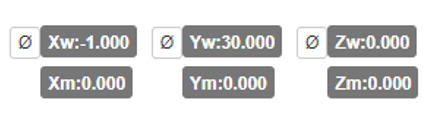
Shows where the carriage is, in two different ways:
- World position — where the machine thinks it is relative to its own origin.
- Local position — where it is relative to the zero you set for this job.
Local position is the one to watch when setting up a plot.
D — Macros
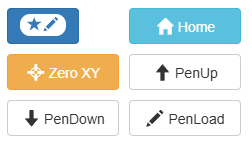
One-click shortcuts:
| Macro | What it does |
|---|---|
| ZeroXY | Sets the current carriage position as X0, Y0 for your job |
| Home | Runs the homing cycle. Homes X and Y against their limit switches — there is no switch on Z, so the Z axis is not homed. |
| Pen Up | Lifts the pen clear of the paper |
| Pen Down | Drops the pen onto the paper |
E — Job progress
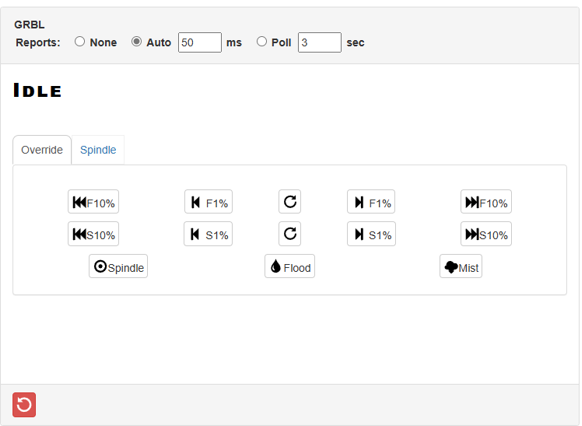
Shows a progress bar while a plot runs, along with pause and cancel controls.
Set the Auto refresh button to 50 ms so the readout keeps up with the machine:

F — SD files
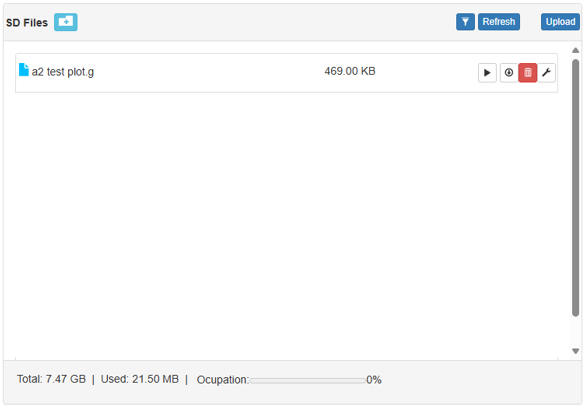
Lists the G-code files stored on the terraPen's SD card, and lets you upload more. Create folders to keep projects tidy, then open a folder to upload into it.
Press the play icon on a row to start plotting that file:
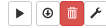
See Uploading files, though terraForge handles uploading and plotting more comfortably.
G — Serial console
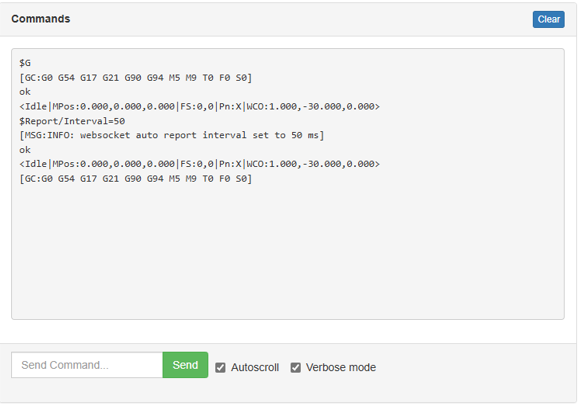
Sends commands directly to the firmware and shows its replies. Useful for clearing alarms and for troubleshooting.
H — Settings

Preferences for the machine and the web UI, including the setup wizard used to join your own Wi-Fi network.
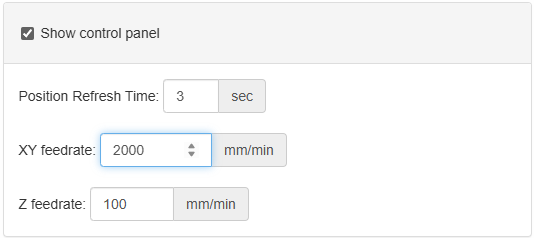
Feedrate settings also live here: