Troubleshooting
Try this first
Most problems clear with a power cycle. Switch the terraPen off at the rear right, wait a few seconds, and switch it back on — see Restarting. Home the machine afterwards.
The machine is crashing into itself
Power it down straight away
Switch the terraPen off at the rear right. Do not wait to see whether it stops on its own, and do not try to fix it while it is still moving.
An emergency stop during homing is being added to terraForge; if your version has it, use it. The power switch works regardless.
There are two common causes. Neither is caught by the machine, because there are no soft or hard limits — see there is nothing to stop you.
1. The artwork is bigger than the bed
The most common cause, and the easiest to rule out. An A1 drawing sent to an A2 machine will start plotting and simply run out of travel.
Check the dimensions of your artwork. In terraForge you can see it against the bed before you send it — and check your machine profile really does say 594 × 420 mm, or that picture is misleading.
2. A limit switch was not seen
If the job definitely fits, the machine did not see a switch when homing, and kept driving because nothing told it it had reached the end.
Getting it moving again
- With the power off, move the toolhead by hand about 50 mm in both X and Y, away from the ends of its travel.
- Switch the machine back on.
- Jog it gently and check it moves normally.
Check both switches
The limit switches are optical — the machine sees the switch when something breaks the beam.
- Slide a piece of paper into the switch slot.
- A green light should come on.
That light means the switch is powered and working. Test both switches.
If a switch does not light up
The problem is nearly always the wiring rather than the switch itself.
- Carefully reseat the wires and watch for the green light as you do.
- Check both ends of the run — at the switch, and at the controller board.
On the board, the limit switches land on J5 for X and J19 for Y:
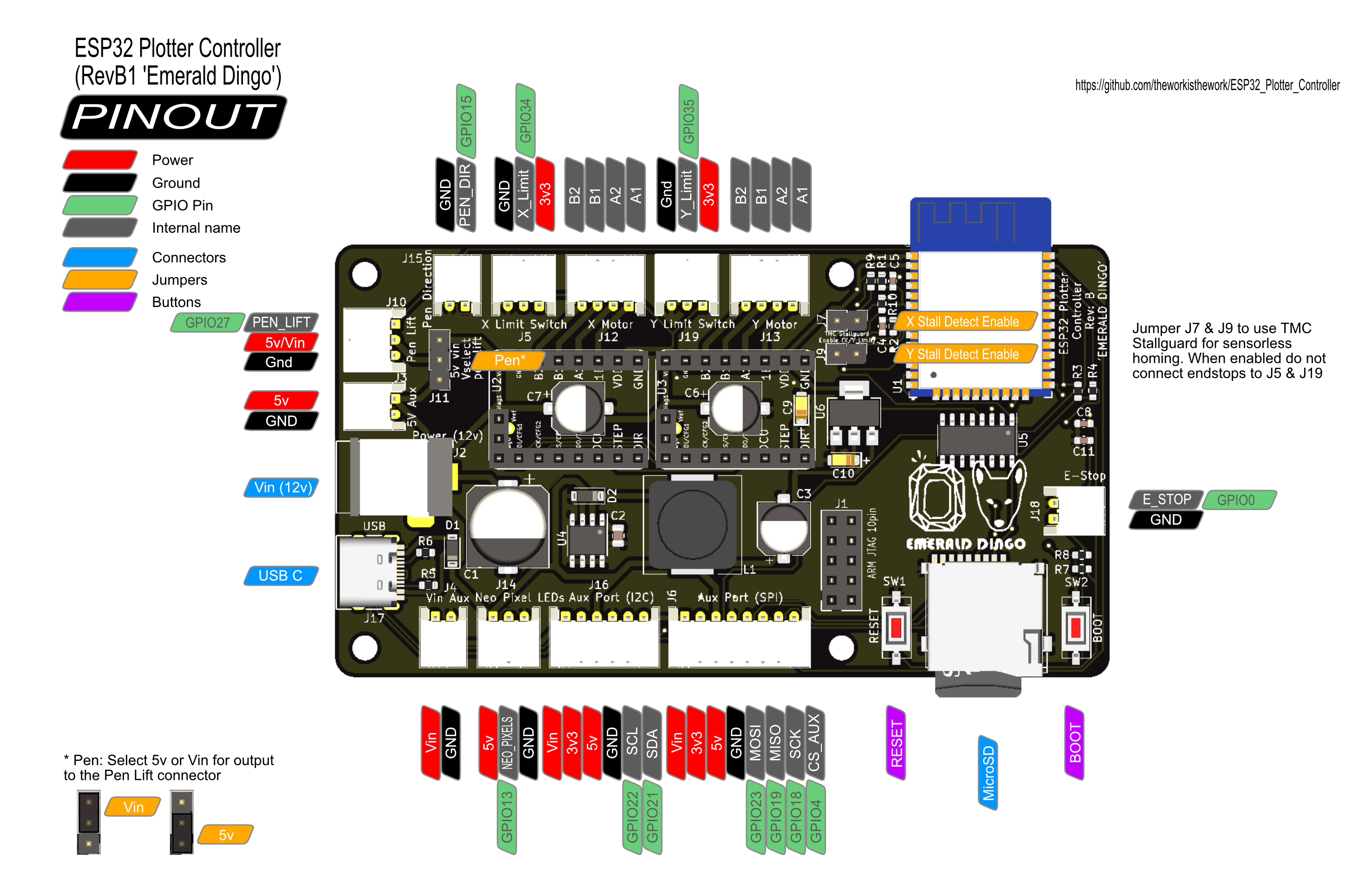
The full pinout is in hardware and source files.
Do not home the machine until both switches light
Homing drives the carriage at the ends of travel on purpose. Until both switches respond, homing will crash it again.
If you still cannot get a green light, get in touch on Discord — it may need a replacement cable, and we would rather send you one than have you keep testing.
Carrying on in the meantime
You can still plot while you wait for a fix. Instead of homing, set your origin by hand:
- Jog the carriage to the front left corner of your paper.
- Press Set Zero in terraForge's jog window.
- Plot as normal.
This gives the machine an origin without needing the switches.
Jog carefully
Nothing stops the carriage at the ends of its travel — see there is nothing to stop you. Move in small steps as you approach the edges of the bed, and do not use the 100 mm jog near the ends.
Treat this as a way to finish a job, not a permanent setup.
The machine will not move
It is probably in an alarm state. FluidNC halts and refuses to move when it stops trusting its position — most often after an aborted plot.
- Clear the alarm — the alarm control in terraForge, or
$Xin the console. - Home the machine again.
If it still will not move, switch the terraPen off at the rear right, bring it back up, and home it.
Avoid this next time
Aborting a plot is what causes it. Pause instead — the machine stops safely and you can resume, with no alarm and no re-homing. See pause first.
I cannot reach terrapen.local
terrapen.local depends on mDNS, which not every device and network supports.
Use the IP address instead — http://192.168.0.1 in access point mode, or the address your router assigned if the terraPen is on your own network.
The captive portal is awkward
On macOS and iOS, joining the terraPen network opens a cut-down browser panel. It works, but some controls misbehave.
Open a normal browser window and go to the address directly.
The terraPen dropped off my Wi-Fi
If it cannot join the network you configured, it gives up after about a minute and returns to access point mode. Reconnect to the terraPen network and check the settings.
Lines are broken, faint or torn
This is nearly always pen height. Too high and the nib skips; too low and it drags or tears.
Because neither the bed nor the paper is perfectly flat, set the pen fractionally into the paper rather than exactly level — the spring then keeps the nib down across any dips. On a solenoid machine it is gravity rather than a spring, but set it slightly low for the same reason. See setting the pen height.
Also check the pen is tight in the holder and the paper is flat and well secured.
The plot stopped when I reconnected to check on it
Reconnecting to a plot already in progress can overload FluidNC's websocket handling and stall the controller, ending the plot part-drawn. It is a firmware limitation rather than anything you did wrong.
Power cycle the machine, home it, and start again. To avoid it next time: if you disconnect, leave the machine alone until the plot finishes, and if you might want to pause, stay connected from the start — see deciding whether you are staying.
Please report it on Discord if you hit it; we track FluidNC's development and it helps to know it is still happening.
The paper is buckling as it plots
Normal on a page taking a lot of ink. Do not re-tape it mid-plot — that moves the paper relative to the work already drawn and misaligns everything after it. The pen will usually push the buckle back down as it passes.
Next time, give the job more Z lift — see if the paper buckles mid-plot.
The plot started in the wrong place
The origin was not where you thought. Home the machine, set your zero again if the job needs one, and check that your G-code was exported with an absolute origin.
The pen drags between shapes, or starts drawing before it lands
On a machine with a solenoid pen lift, this usually means the pen delays are too short or missing. The solenoid needs time to physically move before the machine starts the next move.
Set both the pen-down and pen-up delay to 250 ms in your terraForge machine profile — see terraForge settings.
Also check the solenoid actuated on power-up and is sitting upright. If it did not, the pen will not lift at all.
The pen crashes into the bed
Stop and cut power. Most often Z zero is set too low, or was set against a different sheet — reset it with the nib on the paper you are actually using. If the machine behaves as though it has the wrong toolhead, check its configuration.
Uploads are slow, or fail
Large plots are big files, and uploads are not always fast.
Over the terraPen's own access point, a large file can fail entirely rather than just crawl. Put the machine on your own network before sending anything substantial — it is the single biggest improvement you can make here.
A plot stops part way through, in the middle of the drawing
Suspect an incomplete upload. A file that only half arrived still appears in the file browser and still starts plotting.
Compare the file size on your computer with the size shown in terraForge's file browser. If they differ, delete it, get onto your own network, and upload again.
Still stuck?
Ask on Discord. Include your toolhead type, what you were doing, and anything the serial console printed.